Flight Telemetry
HUD: Contains information to display the flight status
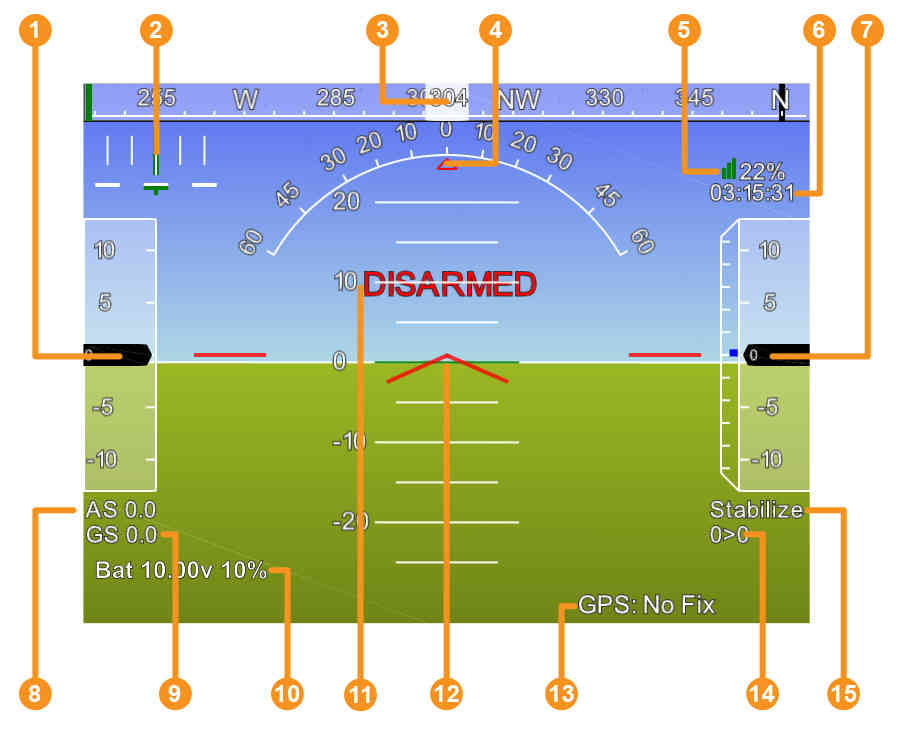
- Airspeed (Groundspeed if no airspeed sensor is fitted)
- Cross track error and turn rate (T)
- Heading direction
- Bank angle
- Telemetry connection link quality (averaged percentage of good packets)
- GPS time
- Altitude (Blue bar is the rate of climb)
- Airspeed
- Groundspeed
- Battery status
- Artificial Horizon
- Aircraft Attitude
- GPS Status
- Distance to Waypoint > Current Waypoint Number
- Current Flight Mode
Data Screen features
🔵 EKF
It is accessed by clicking the EKF button from the HUD. Shows the current variances in Speed, Position and Compass. These should be kept below 0.8 at all times.
📈 VIBE
It is accessed by clicking the VIBE button from the HUD. It shows the value of the vibrations in the three axes as well as the clipping value in the three axes. Vibrations should not be higher than 60 m/s2 for long periods of time. Clipping should ideally be kept at zero, except in sudden maneuvers or hard landings.
⚡ QUICK
It is accessed by clicking the Quick button located on the bar under the HUD. Shows the most relevant flight parameters (altitude, speed). You can replace some parameters by others by double clicking on any of them.
🕹️ ACTIONS
It is accessed by clicking the Actions button located on the bar under the HUD. Allows you to perform actions, such as changes in flight modes, from the Mission Planner.
💬 MESSAGES
It is accessed by clicking the Messages button located in the bar under the HUD. Shows the messages generated by the autopilot.
✅ PREFLIGHT
It is accessed by clicking the Preflight button located on the bar under the HUD. Shows a list of pre-flight checks.
📟 GAUGES
It is accessed by clicking the Gauges button located on the bar under the HUD. Allows Access to some flight parameters in the form of gauges.
📊 STATUS
It is accessed by clicking the Status button located in the bar under the HUD. Allows access to the numerical value of all flight parameters.
⚙️ SERVO/RELAY
It is accessed by clicking the Servo/ Relay button located on the bar under the HUD. Allows sending PWM signals to the vehicle's servo rail on the autopilot.
🧩 SCRIPTS
It is accessed by clicking the Scripts button located on the bar under the HUD. Allows uploading custom scripts to extend Mission Planner capabilities.
📡 TELEMETRY LOGS
It is accessed by clicking the Telemetry Logs button located on the bar under the HUD. Allows you to view the logs generated by the Mission Planner.
📁 DATA FLASH LOGS
It is accessed by clicking the Dataflash Logs button located on the bar under the HUD. Allows you to download and view the logs generated by the autopilot.
📷CAMERA CONTROL
It is accessed by clicking the Camera Control button located on the bar under the HUD. Allows you to control some aspects of a camera type payload.